PAGE CONTENT
Intro
Creating a logo for your new business can be a costly affair. But what if you could create a free AI logo design within seconds? This blog will guide you through the process of using AI tools to generate stunning logos without spending a dime.
By eliminating the barriers of hidden costs and unnecessary expenses, you can focus on your business idea and product. Ready to dive in? Let’s get started!
Step 1: Bing
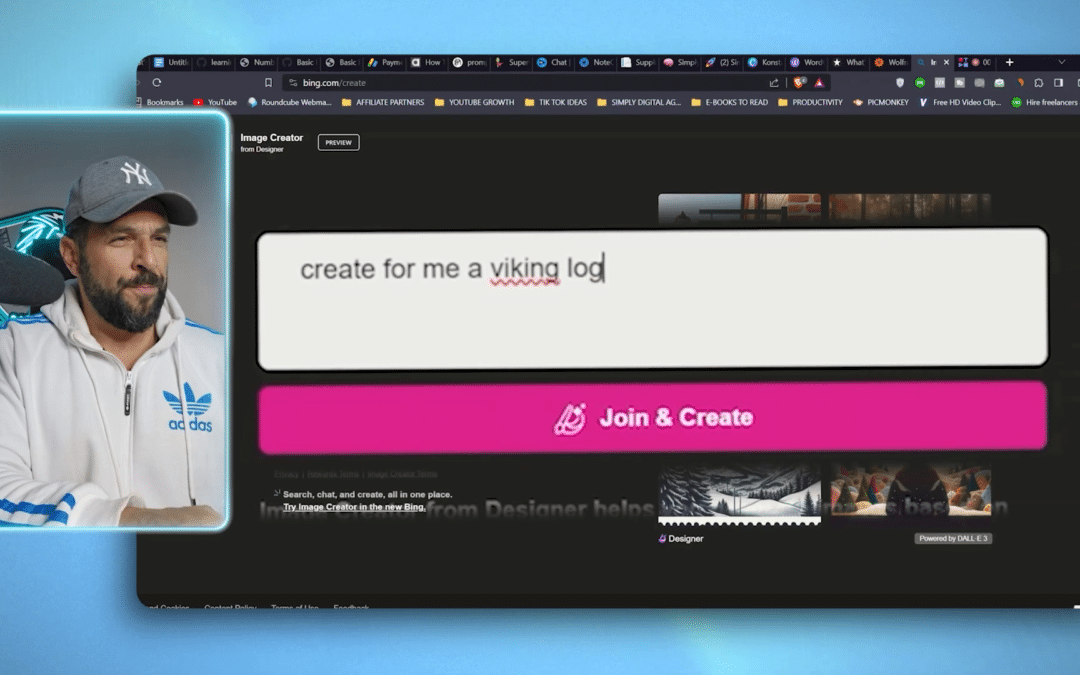
We begin with Bing, which offers a fantastic tool called Bing Image Generator. This tool allows you to generate images using AI, including unique and beautiful logo ideas.
To get started, visit bing.com/create. Once there, you can enter a description of the logo you want. For instance, you might type, “Create for me a Viking logo with neon elements for my gaming business.”

After hitting “Create,” you may need to register if you haven’t already. Once registered, Bing will generate several logo options for you to choose from.

Pick the one you like best, and you can download, customize, or save it for future use.
Step 2: Customization
Next, let’s customize your chosen logo using Microsoft’s design platform. This tool functions similarly to Canva and allows you to edit images with prompts.
You’ll have the chance to see your logo in different mockups and designs, helping you decide if it’s the right fit for your brand.

If you don’t like the initial options, you can regenerate new ones or tweak your prompt. For example, you might change “gaming business” to “mentoring business” and see what new logos are created.

Once satisfied, download your logo and move on to the next step.
Step 3: Adding Your Logo
Now that you have your logo, it’s time to integrate it into your designs. Open Canva and start a new project, such as an Instagram carousel to communicate your brand messages.
Choose a template that suits your needs and replace the placeholder logo with your newly created one.

Position your logo on the top left corner or any other desired spot. Ensure it’s visible and well-placed throughout your design.

Repeat this process for business cards, cover letters, or even your website. The versatility of your AI-generated logo allows you to use it across various platforms and materials.

Final Touches
Finally, you might want to remove the background of your logo for more flexibility in your designs. Use Canva’s background remover or a free tool like remove.bg to achieve this.

Upload your logo, remove the background, and save the new version. You’re now ready to use your logo in any context, making your brand stand out.
Conclusion
Creating a free AI logo design is fast, easy, and incredibly efficient. With tools like Bing Image Generator, Microsoft Designer, and Canva, you can generate and customize logos that reflect your brand’s identity without breaking the bank.
Start experimenting with these tools today and elevate your brand image effortlessly. Happy designing!